



Nothing’s more heart-stopping than accidentally deleting important files on your Windows PC. Maybe it’s a presentation due tomorrow or those priceless family photos you can’t replace. We understand losing them feels like a mini disaster. But don’t worry, all hope isn’t lost.
Windows offers multiple ways to recover recently deleted files, and even permanently deleted files can often be restored with the right tools. In this guide, we’ll walk you through step by step how to recover deleted files on Windows 11/10.
Where to Find Deleted Files on Windows?
One of the first questions many users ask is, “Where to find deleted files on Windows?” As is well known, files deleted from Windows are usually first moved to the Recycle Bin. This is a special folder that temporarily stores deleted files, giving you a chance to restore them if needed.
However, you may notice that some deleted files don’t appear in the Recycle Bin. This usually happens in a few situations:
- The file was deleted using Shift + Delete.
- The file was deleted from a network drive or a removable storage medium.
- The Recycle Bin is full, so Windows may skip storing new deleted files.
Plus, if your files are synced with cloud services like OneDrive, they might still be safely stored in the cloud even after being deleted locally.
Can You Recover Deleted Files on Windows?
So, is it really possible to recover deleted files on Windows? The answer is yes, but whether you succeed depends on a few factors. For example, do you have a backup available? Have you continued using your PC heavily after deleting the file? And what type of disk are you using?
No matter what, acting quickly is always a good idea. The sooner you try to recover a file, the higher the chance you’ll get it back. Now, let’s take a closer look at how to recover recently/permanently deleted files on Windows!
How to Recover Deleted Files on Windows 11/10 With Software?
Searching for how to recover permanently deleted files on Windows 11 for free on Google? Tenorshare 4DDiG offers a comprehensive solution for retrieving deleted, formatted, hidden, or lost files. This recovery tool works with a variety of storage devices, including HDDs, SSDs, and USB drives, and doesn’t require any technical knowledge to use. Here are more details about 4DDiG:
- Recognizes more than 2,000 file types, such as images, videos, audio files and documents.
- Offers both quick and deep scanning modes.
- Fast scanning and recovery speeds.
- Full compatibility with all major Windows versions, from Windows 7 to Windows 11.
- You’re allowed to examine files before recovery to confirm they are intact.
- A free version is available for Windows users.
Here’s an example of how to recover permanently deleted files on Windows 10 with the aid of 4DDiG:
Step 1: Download and install 4DDiG on a drive that doesn’t contain the deleted files. Open the program, then select the drive or location where your deleted files were originally stored. Click the “Scan” button to start searching for lost files.
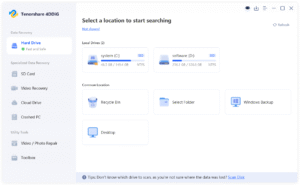
Step 2: 4DDiG will perform a thorough scan of the selected disk. You can monitor its progress with the progress bar and pause or resume the scan at any time if needed.
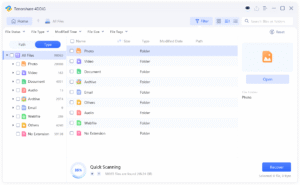
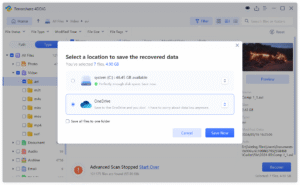
Step 3: Once the scan is complete, preview and select the files you wish to restore. Click “Recover” and choose a different drive or cloud storage as the recovery destination.
How to Recover Deleted Files on Windows 11/10 Without Software?
Method 1: Check the Recycle Bin
Wondering how to recover recently deleted files on Windows? The first place to check is the Recycle Bin. Start by double-clicking the Recycle Bin icon on your desktop. Browse through the list or use the search box to locate the desired file. Once you find it, right-click the file and select “Restore.”
Method 2: Recover Deleted Files on Windows with File History
File History is a built-in Windows feature that automatically backs up your personal files. It works by saving multiple versions of your files over time. So, if you accidentally delete or overwrite a file, you can not only recover the latest version but also restore an earlier version from a previous backup. Follow the given steps to perform deleted file recovery on Windows:
Step 1: Type Control Panel in the Windows search bar, and then press Enter key.
Step 2: Click “System and Security” followed by tapping “Restore your files with File History.”
Step 3: Locate and select the file you need, then click the green Restore button.
Method 3: Restore from Windows Backup
If File History was not enabled, there’s still another built-in option that might help — Backup and Restore (Windows 7). Although the name sounds a bit outdated, this tool is still available in both Windows 10 and Windows 11 and works in a similar way to File History. Here’s how to recover permanently deleted files on Windows 10 via Windows Backup:
Tip: Before you start, make sure the external drive or network location where your backup is saved is properly connected.
Step 1: Begin with opening the Control Panel app. Next, navigate to “System and Security” > ” Backup and Restore (Windows 7).”
Step 2: Under the “Restore” section, hit “Restore my files.”
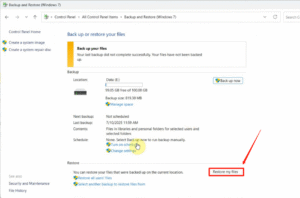
Step 3: Browse through your backup list or use the search box to locate the target files. Once selected, click “Next” to continue.
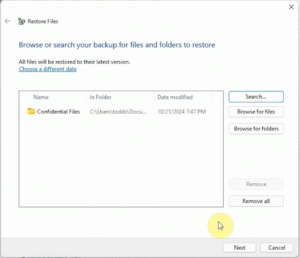
Step 4: Choose whether to restore files to their original location or a new folder. Finally, tap “Restore.”
Method 4: Recover Deleted Files on Windows through OneDrive
As mentioned in the first chapter, your deleted files may still be safely stored in the cloud. This is because Windows 10 and 11 come with OneDrive pre-installed, which automatically syncs your important files to the cloud.
To recover files, you can open the OneDrive app on your computer or visit the OneDrive website in a browser and sign in with your account. Once logged in, check whether OneDrive has backup copies of your deleted files. Plus, don’t forget to look in the OneDrive Recycle Bin.
Method 5: Seek Professional Help
So far, we’ve explored five ways to recover permanently deleted files on Windows 11 for free. However, if all above-mentioned methods fail, it may be time to contact professional data recovery services. These services have specialized tools and expertise that go beyond what consumer software can do, allowing them to handle severe data loss scenarios. Here are some reliable options to consider in 2025:
- Secure Data Recovery Services
- SALVAGEDATA Recovery Services
- ACE Data Recovery
- Gillware
- DriveSavers Data Recovery
Bottom Line
Now, you no longer need to worry about the question, “How to recover deleted files on Windows 10/11.” Whether your files are still in the Recycle Bin or have been permanently deleted, there’s a chance to get them back as long as they haven’t been overwritten. Remember, the key is to act quickly and choose the right method for your situation. If you need a software solution, Tenorshare 4DDiG is worth trying. With a success rate of up to 99.6%, it has become one of the most highly regarded recovery tools in the industry.
